How to Connect to a Forex VPS Using Remote Desktop (RDP) on Mac
Written by MarginVPS Infrastructure Team
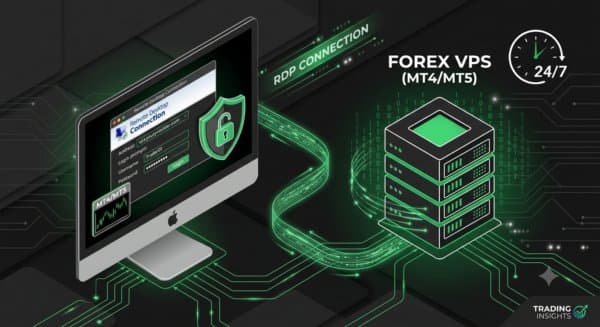
Mac users can connect to their forex VPS in minutes using Microsoft Remote Desktop. Step-by-step guide to get MetaTrader running on a trading VPS from macOS.
December 29, 2025·3 min read
Connecting to a Windows forex VPS from a Mac takes less than 5 minutes once you have the right app and your VPS credentials. This guide walks through the complete setup process step by step.
What You Need
- A MarginVPS account with an active plan
- Your VPS IP address, username, and password (sent in your welcome email)
- Microsoft Remote Desktop from the Mac App Store (free)
- A stable internet connection (1 Mbps is sufficient for RDP)
Step 1: Install Microsoft Remote Desktop
Open the App Store on your Mac and search for “Microsoft Remote Desktop”. Install the app by Microsoft Corporation — it is free and regularly updated.
Do not use third-party RDP clients unless you have a specific reason to. The Microsoft app is the most reliable and has native Apple Silicon support.
Step 2: Open the App and Add a New PC
- Launch Microsoft Remote Desktop
- Click the + button in the toolbar
- Select Add PC
You will see a dialog with several fields.
Step 3: Enter Your VPS Details
PC name: Enter the IP address from your MarginVPS welcome email. It looks like 185.xxx.xxx.xxx.
Leave all other fields at their defaults for now.
Step 4: Add Your Login Credentials
Under User account, click the dropdown and select Add User Account.
- Username: Enter the Windows username from your welcome email (typically
Administrator) - Password: Enter the Windows password from your welcome email
Click Add to save the account, then click Add again to save the PC.
Step 5: Connect
Double-click the saved connection in the Microsoft Remote Desktop app. The first time you connect, you will see a certificate warning:
“Remote Desktop can’t verify the identity of the computer you want to connect to.”
Click Continue. This is expected for a new VPS — the certificate is self-signed.
You will now see the full Windows desktop of your VPS.
Step 6: Install MetaTrader on the VPS
Inside the Windows session:
- Open Internet Explorer or Microsoft Edge (built into Windows Server)
- Navigate to your broker’s website
- Download the MT4 or MT5 installer for Windows
- Run the installer and complete the setup
MetaTrader will open automatically after installation.
Step 7: Log In and Load Your EA
- In MetaTrader, go to File → Login to Trade Account
- Enter your broker account number, password, and select your broker’s server
- Wait for connection (you will see “Connected” in the bottom right)
- Open a chart for your trading pair
- Drag your EA from the Navigator panel onto the chart
- In the EA settings, check Allow automated trading
- Confirm the AutoTrading button in the toolbar is active (green)
Step 8: Close Remote Desktop and Leave the VPS Running
You do not need to keep Remote Desktop open. Simply close the window — the VPS continues running your EA 24/7.
The Windows session does not end when you disconnect. Your positions remain open, your EA continues executing, and MetaTrader stays connected to the broker.
Reconnecting Later
To check on your EA or make changes, simply open Microsoft Remote Desktop and double-click your saved connection. Your desktop will appear exactly as you left it — MetaTrader open, EA running.
Common Connection Issues
“Remote Desktop Connection was interrupted” Check that you are using the correct IP address. IPs on MarginVPS are static and do not change.
Grey screen after connecting Wait 20–30 seconds. Windows Server sometimes takes a moment to render the desktop on reconnect.
Keyboard shortcut conflicts On Mac, Cmd+C and Cmd+V do not work inside RDP. Use Ctrl+C and Ctrl+V for copy-paste in Windows applications.
High visual latency (sluggish screen) In the RDP connection settings, set Color Quality to High Color (16-bit) and reduce the connection speed setting. Since you are monitoring MetaTrader (not doing graphics work), lower visual quality is fine.
Verifying Execution Quality
Once connected and MetaTrader is running, check the ping indicator at the bottom of the terminal. On a MarginVPS instance co-located with your broker:
- Expected ping: 0–1ms
- Acceptable ping: 1–5ms
- Investigate if above: 10ms+
If ping is higher than expected, verify you selected the correct VPS location (LD4 for UK/EU brokers, NY4 for US brokers) during signup.
Ready to stop losing milliseconds to your home connection?
MarginVPS runs your MT4, MT5, or cTrader terminal on a low-latency VPS inside your broker's data center — from $16.67/mo, with an extra 20% off using code EXTRA20OFF.
View VPS Plans →