MT4 & MT5 VPS Optimization: A Complete Setup Guide
Written by MarginVPS Infrastructure Team
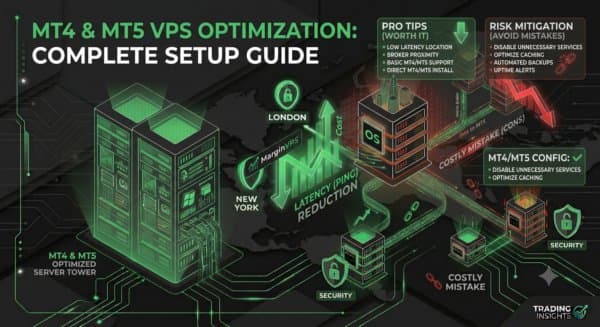
Step-by-step instructions for configuring MetaTrader on a trading VPS to squeeze every microsecond of performance out of your setup.
April 10, 2026·8 min read
Getting a forex VPS is step one. Configuring MetaTrader correctly on it is step two — and it is where most traders leave performance on the table.
This guide walks through every significant optimisation you can make to MT4 and MT5 on a trading VPS, from initial setup to ongoing tuning.
Step 1: Install the Right Build
Always download MetaTrader directly from your broker’s website, not from MetaQuotes. Broker-specific builds include pre-configured server addresses and sometimes modified server lists optimised for their infrastructure.
For MT4, use the latest stable build (1420+). For MT5, use build 3700+. Older builds have known memory leaks that cause terminal instability over long uptime periods.
Step 2: Disable Unnecessary Visual Features
MetaTrader renders charts continuously. On a VPS where you are not watching the screen, this wastes CPU cycles.
In MT4/MT5 Options (Ctrl+O):
- Charts tab → set “Max bars in history” to 10,000 (not unlimited)
- Charts tab → set “Max bars in chart” to 2,000
- Expert Advisors tab → enable “Allow automated trading”
- Server tab → confirm the server address matches your broker’s co-located server (not a regional proxy)
Close all chart windows you are not actively using. Each open chart consumes RAM and CPU for rendering, even when minimised.
Step 3: Optimise Network Settings
On your VPS, open Control Panel → Internet Options → Connections → LAN Settings. Disable any proxy detection — it adds latency to every connection.
Set your DNS to a low-latency provider: 1.1.1.1 (Cloudflare) or 8.8.8.8 (Google) rather than your ISP’s default DNS.
In MetaTrader, go to Tools → Options → Server and ensure “Enable proxy server” is unchecked unless your broker requires it.
Step 4: Pin CPU Affinity for Multi-EA Setups
If you are running multiple MT4/MT5 instances, manually assigning each process to specific CPU cores reduces context-switching overhead.
In Task Manager (Ctrl+Shift+Esc):
- Right-click the
terminal.exeprocess - Select Set Affinity
- Assign each MT4 instance to separate cores
For a 4-core VPS running 2 MT4 instances, assign instance 1 to cores 0–1 and instance 2 to cores 2–3.
Step 5: Disable Windows Visual Effects
Right-click My Computer → Properties → Advanced System Settings → Performance → Settings → Adjust for best performance. This removes animated window effects that consume GPU resources unnecessarily on a VPS.
Also disable Windows Search indexing: Services → Windows Search → Disabled. Indexing runs in the background and spikes CPU during market hours.
Step 6: Configure EA-Specific Settings
Tick processing mode — for EAs that only need to run on bar close, set ENUM_TIMEFRAMES to the appropriate period and use OnTick() with a bar-change check rather than processing every tick. This reduces CPU load by 60–80% for timeframe-based strategies.
Logging — disable verbose Print() statements in production EAs. Excessive logging writes to disk on every tick, introducing I/O latency.
Magic numbers — use unique magic numbers for each EA instance. Conflicts cause unexpected behaviour that is difficult to debug remotely.
Step 7: Monitor Memory Usage
MetaTrader leaks memory over long runtimes if EAs use dynamic arrays or objects without explicit cleanup. Monitor terminal.exe memory usage via Task Manager weekly.
If you see memory climbing above 500MB for a single terminal over 7 days, the EA has a memory leak. Add ArrayFree() calls or contact the EA developer.
Step 8: Set Up Auto-Restart
Install a scheduled task or watchdog script that restarts MetaTrader if it crashes:
- Open Task Scheduler
- Create a basic task that runs
terminal.exeat system startup - Set it to run whether or not a user is logged in
This ensures your EAs resume automatically after VPS maintenance reboots.
Checklist
- Latest broker-specific build installed
- Max bars limited (10k history, 2k chart)
- Proxy detection disabled
- DNS set to Cloudflare or Google
- CPU affinity assigned for multiple instances
- Windows visual effects disabled
- Windows Search indexing disabled
- EA logging set to production level
- Unique magic numbers confirmed
- Auto-restart task created
Ready to stop losing milliseconds to your home connection?
MarginVPS runs your MT4, MT5, or cTrader terminal on a low-latency VPS inside your broker's data center — from $16.67/mo, with an extra 20% off using code EXTRA20OFF.
View VPS Plans →